McGraw Hill Proctoring Tools: What They Track vs What They Don't
Learn exactly what McGraw Hill proctoring tools track and what they cannot detect. Understand Proctorio and Respondus monitoring capabilities to prepare for your next exam.
Understanding McGraw Hill's Proctoring Partnerships
McGraw Hill Connect does not have its own built-in proctoring system. Instead, it partners with third-party proctoring services that schools can choose to integrate. The two most common proctoring tools used with McGraw Hill are Proctorio and Respondus LockDown Browser.
Whether your exam is proctored depends entirely on your professor and institution. Many McGraw Hill assignments, including homework and practice quizzes, are not proctored at all. High-stakes exams and midterms are more likely to include proctoring.
Understanding which proctoring tool your school uses and what it actually monitors can help you prepare appropriately and reduce test anxiety. Let us break down exactly what these tools can and cannot detect.
What Proctoring Tools Track: Complete List
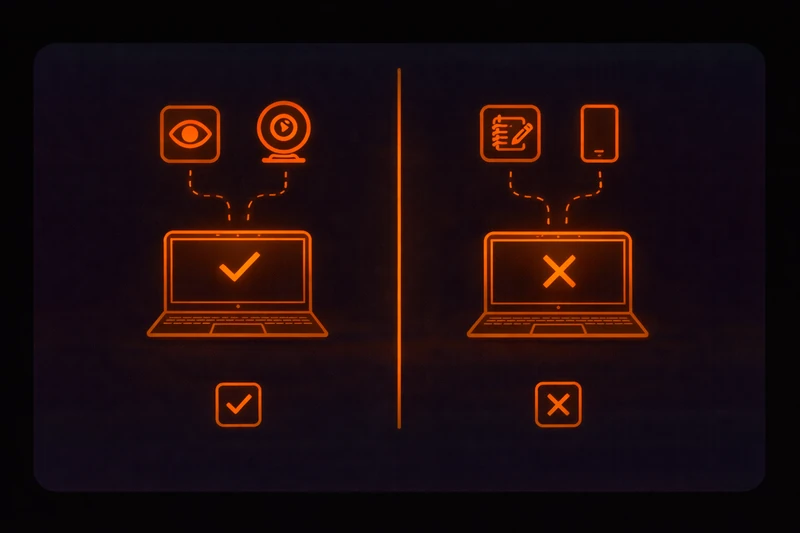
When proctoring is enabled, these tools monitor various aspects of your exam session. Here is a comprehensive breakdown of what they can track:
Webcam Monitoring
- • Your face and head movements throughout the exam
- • Eye movements and gaze direction
- • Whether additional people are visible in the frame
- • Changes in lighting or background
- • Absence from the camera view
Audio Monitoring
- • Voices in the room (including yours and others)
- • Unusual sounds that may indicate communication
- • Background noise levels
Screen and Browser Activity
- • Screen recording of your exam window
- • Attempts to open new tabs or windows
- • Copy and paste actions
- • Right-click menu usage
- • Keyboard shortcuts
- • Browser navigation attempts
System Monitoring
- • Running applications on your computer
- • Virtual machine detection
- • Multiple monitor detection
- • Network activity patterns
What Proctoring Tools Do Not Track
Despite their comprehensive monitoring capabilities, proctoring tools have significant limitations. Here is what they cannot detect:
Technical Limitations
- • Content on a second device (phone, tablet, another computer)
- • Physical notes placed outside the camera's view
- • Browser extensions that do not interfere with the exam page
- • Activity on other devices connected to the same network
- • Information displayed on smart watches or other wearables
Privacy Boundaries
- • Personal files on your computer (unless you open them)
- • Your browsing history from before the exam
- • Saved passwords or personal information
- • Activity after you close the proctoring software
It is important to note that while proctoring tools cannot see everything, suspicious behavior patterns are often flagged for human review. Instructors receive reports highlighting unusual activity, which they can investigate further.
How to Identify Active Proctoring Features
Before starting any McGraw Hill exam, you should know whether proctoring is enabled and what type of monitoring is active. Here is how to identify it:
Check the Assignment Instructions: Professors typically inform students when an exam is proctored. Look for mentions of Proctorio, Respondus, or specific proctoring requirements in the assignment description.
Look for Software Prompts: If proctoring is enabled, you will be prompted to install software or allow camera and microphone access before the exam begins. Respondus LockDown Browser requires a separate application download.
Check Your Browser Extensions: If Proctorio is active, you will see its icon in your browser toolbar. It typically turns green or displays a recording indicator when monitoring is active.
Review the Pre-Exam Checklist: Proctored exams usually have a setup process that includes webcam verification, ID checks, and room scans. If you skip directly to questions, proctoring may not be enabled.
Preparing for Proctored Exams
If your McGraw Hill exam does include proctoring, proper preparation can help you avoid false flags and complete your exam smoothly.
Environment Setup
- • Choose a quiet, well-lit room with a plain background
- • Remove any materials that could be flagged as notes
- • Ensure you are alone in the room during the exam
- • Close unnecessary applications before starting
- • Use a stable internet connection
Technical Preparation
- • Test your webcam and microphone before the exam
- • Install any required software ahead of time
- • Close all browser tabs except the exam
- • Disable notifications on your computer
- • Charge your laptop or connect to power
During the Exam
- • Keep your face visible in the camera at all times
- • Avoid looking away from the screen for extended periods
- • Do not read questions aloud
- • Use only approved resources
- • If you need a break, check your exam's break policy first
Frequently Asked Questions
Are all McGraw Hill Connect exams proctored?
No, proctoring is optional and depends on your instructor's choice. Most homework assignments and practice quizzes are not proctored. Proctoring is more common for midterms, finals, and high-stakes exams.
Can proctoring software see my other browser tabs?
Respondus LockDown Browser prevents you from opening other tabs entirely. Proctorio can detect if you navigate away from the exam but cannot see the content of other tabs unless you open them during the exam.
What happens if I get flagged during a proctored exam?
Flags are sent to your instructor for review. They will examine the recording and context before making any decisions. A single flag does not automatically mean consequences - instructors understand that some flags are false positives.
Can I use a second monitor during a proctored exam?
Most proctoring tools detect and flag multiple monitors. If your exam requires a single monitor, you will need to disconnect additional displays before starting. Check your exam instructions for specific requirements.
Does proctoring software record my entire screen?
Yes, most proctoring software records your screen during the exam. This recording is reviewed if suspicious activity is flagged. The recording typically only includes what happens during the exam session.